All work

Case 05 of 06

Inspect

VAT inspection at a glance.

A VAT automation and inspection dashboard built for quick, glanceable work.

TL;DR
Problem
Reviewers checked every expense by hand, with no reason attached to a flag.
What I did
Mapped the review flow, then designed 38 screens in light and dark on shadcn/ui.
Result
Flags arrive with their rule, so a reviewer can decide in one look.
Client
BlueDot Corporation, Netherlands and Israel
My role
UI/UX designer
Date
2023
Platforms
Web app and mobile, on shadcn/ui
Team
Me, VP of product, head of product, tech lead, frontend dev, fullstack dev, QA automation
Industries
  • Tax automation
  • VAT
  • Compliance
  • Fintech
B2BSaaSTaxVAT complianceDashboardweb appEvery flagshows its rule

Try it yourself

This is the real Figma prototype, running live. Check the key figures and open a flagged transaction, the way inspectors do.

Things to try

  • Read the key figures at a glance
  • Open a flagged transaction
  • See the rule that caught it

These are the real Figma prototypes, embedded live, so they need a stable connection and can still feel slow or skip a step. For the full picture, open the Figma file. Every screen, state, the design system and the components are there.

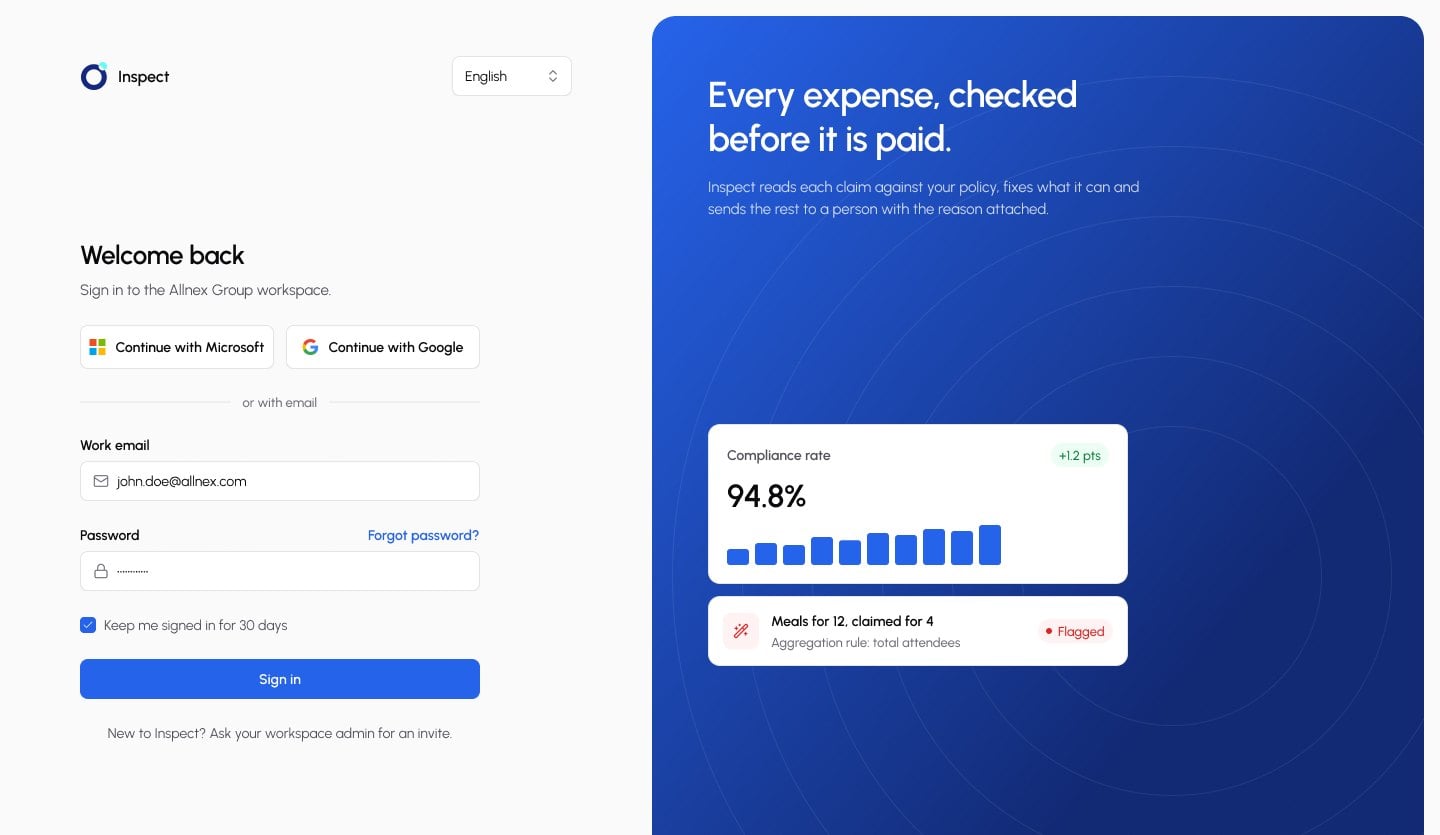
Inspect sign in

01Overview

Every expense, checked.

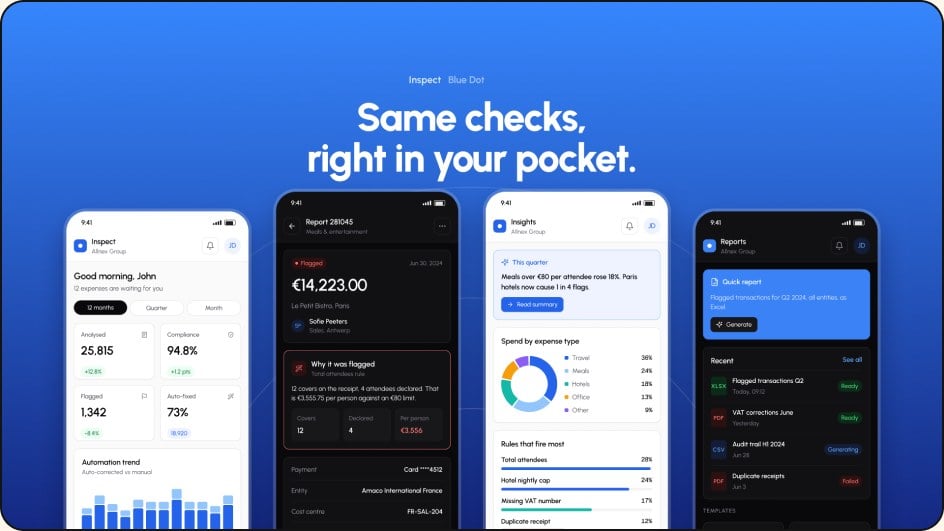
Inspect by Blue Dot reviews company expenses against a set of controls, corrects what it can on its own and flags the rest for people to review. I designed the web app and its mobile views: sign in with a second check, dashboards, transactions, checks, reports, control categories, dialogs and empty states, in light and dark.

02What it had to do

Three goals kept every screen honest.

  • Surface risk first

    Flagged transactions rise to the top with the reason already attached.

  • Keep a clear trail

    Every approval, rejection and comment is logged against the transaction for audits.

  • Hand over control

    Admins write and adjust rules in plain language instead of filing tickets.

03Who it’s for

Same data, very different questions.

  • Finance leads

    How much spend is flagged, where it comes from and whether the controls work.

  • Reviewers

    Work through queues daily and need context, history and a fast way to decide.

  • Admins

    Configure categories, thresholds and rules, and manage who sees what.

04How it came together

From the review flow outward.

The most used screens were settled before anything else was styled.

  • 01

    Map the flow

    Found where reviewers lost time

  • 02

    Wireframe the core

    Dashboard, queue and detail in grey boxes

  • 03

    Build the system

    Built on shadcn/ui, both themes from one set of tokens

  • 04

    Design and refine

    Contrast, empty states and edge cases

05Key decisions

Clarity first.

Is it working?
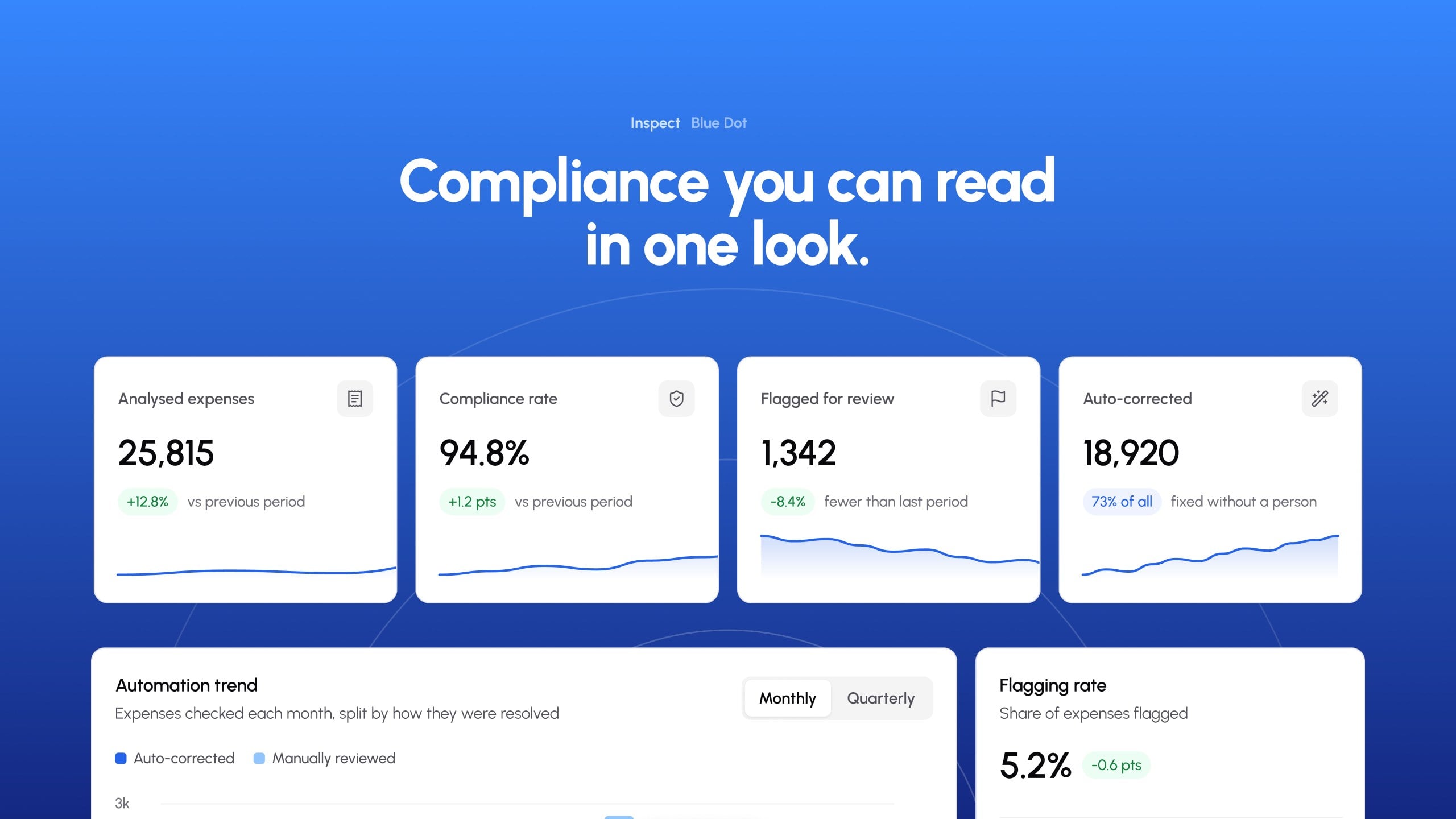
Inspect key figures: analysed, compliance rate, flagged and auto-corrected

The problem

A finance lead’s first question is whether the controls are working at all.

The fix

The performance dashboard shows how much was analysed, how much passed, and how much was fixed automatically instead of by hand.

Core decisions

  • Analysed expenses, compliance rate and flagged expenses lead the page.
  • The automation trend splits auto corrections from manual reviews.
  • Flagging per entity shows where the risk comes from.
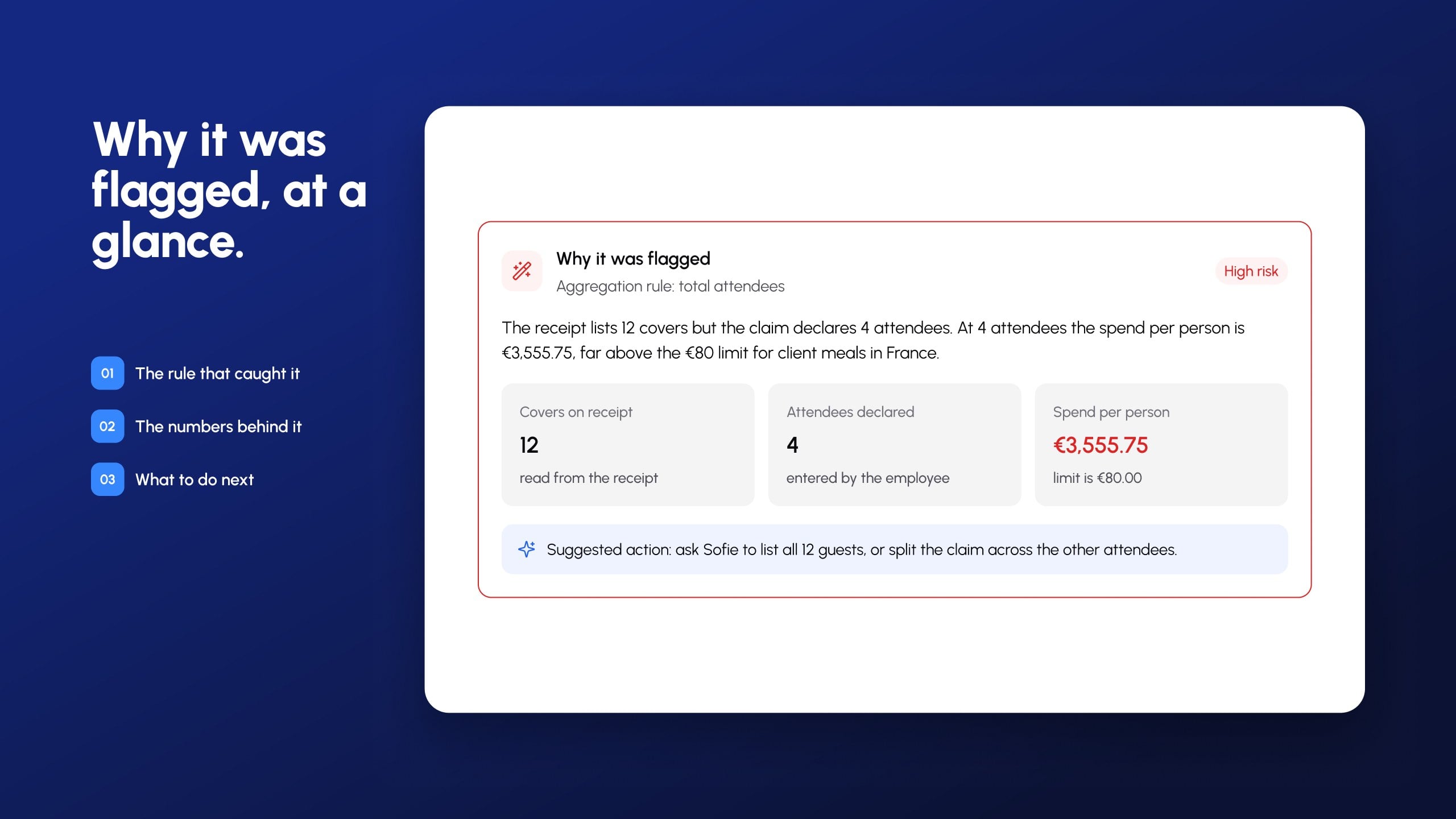
From transaction to decision
Inspect explains why an expense was flagged

The problem

A flag on its own doesn’t tell a reviewer why.

The fix

Every transaction carries the checks it went through, so a reviewer sees why it was flagged before deciding what to do.

Core decisions

  • The rule that caught it sits next to the flag.
  • Reviewers can judge a flag without opening anything else.
  • Every check has a plain description admins can adjust.

06More screens

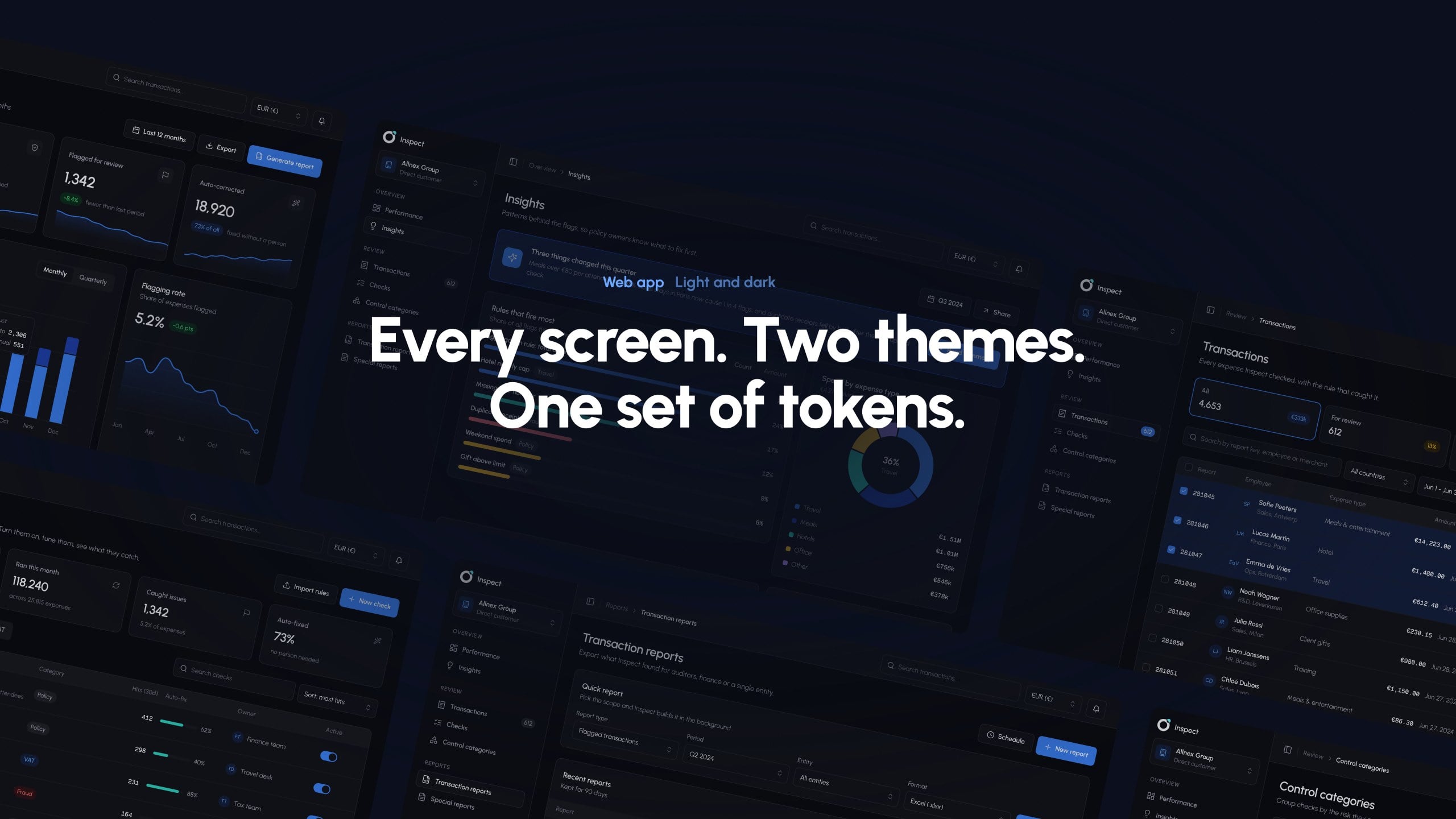
Dark theme, mobile and states.

  • 38screens per theme
  • 2themes
  • 3roles served
Inspect screens in the dark theme
Inspect on mobile, light and dark

The system underneath

Inspect v2 foundations and components on Figma variables, built for dense tax data in light and dark.

Colour tokens
Typography
Core components
Motion
Feedback: toasts and dialogs
Component index
The design file

See all of Inspect in Figma.

Every screen and state, the components and the design system, in the file I designed it in.

Next project, 06 of 06

Ethiojobs ATS

Applicant tracking for Ethiopia’s largest job board.